


Last updated: August 25, 2026
Most companies don’t have a strategy problem. They have a Tuesday-afternoon problem: someone re-typing the same invoice data into three systems, a manager scrolling through fifty emails looking for one approval, a support ticket that sat untouched for two days because nobody was watching the inbox. None of that work requires a human brain. It just requires a human to notice it’s repetitive and hand it off.
That’s the job Microsoft Power Automate does. It’s a low-code workflow tool built into the Microsoft 365 ecosystem that connects your apps and systems, watches for a trigger (a new email, a form submission, a status change), and runs a set of actions in response. No developer required for most of it, though the platform scales up to genuinely complex, governed, enterprise-grade automation when you need that too.
Quick answer: The Power Automate use cases delivering the most value for businesses in 2026 are approval workflows, invoice and document processing with AI Builder, employee onboarding, CRM and sales lead management, customer support ticket routing, document generation with e-signature, Power BI alert-to-action flows, RPA for legacy systems, marketing and social media automation, and AI agent flows for handling exceptions. Below, each one includes what problem it solves and how the flow actually works.
If you’re weighing Power Automate against your current stack of manual processes and spreadsheets, our team at ZapAI’s Power Platform consulting practice can help you scope where automation pays off fastest, but you don’t need us for this list. Let’s get into it.
What Power Automate Actually Does, in Plain Terms
Power Automate builds “flows”: a trigger plus a chain of actions. The trigger might be “when a file lands in this SharePoint folder” or “when a Power BI metric crosses a threshold.” The actions might be “send an email,” “create a task,” “wait for approval,” or “extract data from this document using AI.” Microsoft ships more than 1,000 prebuilt connectors, covering everything from Outlook and Teams to Salesforce and SAP, so most workflows don’t need custom code at all.
That’s the mechanism. Here’s where it earns its keep.
1. Approval Workflows
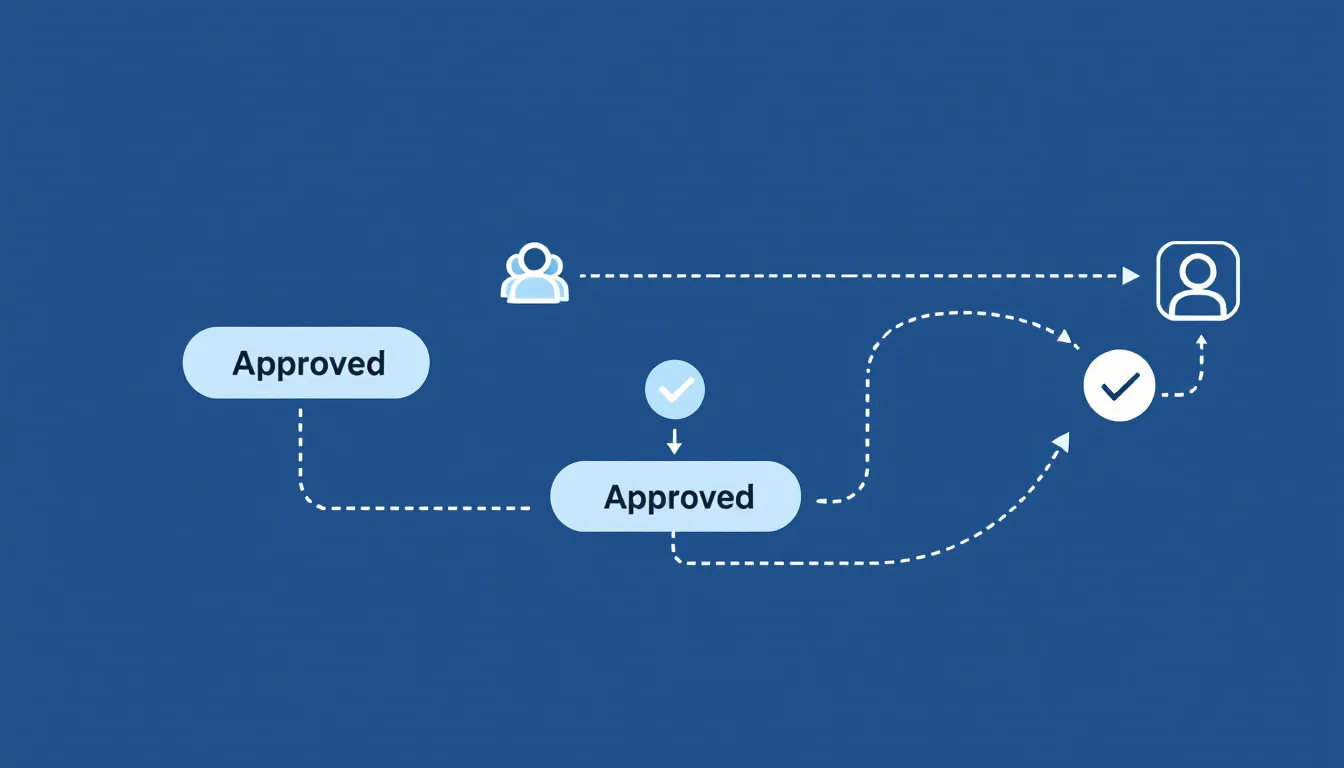
Purchase orders, budget exceptions, vendor contracts, time-off requests: in most companies these still bounce between inboxes, and everyone involved loses track of where a request actually sits. Power Automate’s “Start and wait for an approval” action fixes the routing problem directly. A request comes in, it’s sent to the right approver automatically, and the response (with comments) gets logged.
Sequential vs. Parallel Approvals
Some requests need one person’s sign-off before moving to the next; that’s a sequential approval, useful for a proposal that goes to a team lead, then a director. Others need multiple stakeholders weighing in at the same time, independently; that’s a parallel approval, common when legal and finance both need to clear a lease agreement before a VP gives final sign-off.
The detail most demo flows skip is the third branch: what happens when nobody responds. A well-built approval flow doesn’t just have “approve” and “reject” paths. It fires a reminder after 24 hours and escalates to a backup approver after 48, so a request never just sits there because someone’s on vacation.
2. Invoice and Document Processing with AI Builder
Accounts payable teams processing hundreds of invoices a month are a textbook automation case. Microsoft’s own architecture for this pairs a Power Automate cloud flow with AI Builder’s invoice-processing model: an email or SharePoint upload triggers the flow, AI Builder extracts vendor name, invoice number, date, and amount, and the data gets validated against the purchase order before it’s pushed into Dynamics 365 Finance or another ERP system.
The result isn’t just faster data entry. It’s fewer mismatches between invoice and PO, because the validation step catches discrepancies before a human ever has to.
3. Employee Onboarding and Offboarding
New-hire onboarding sounds simple until you count the actual steps: HR fills out a form, IT provisions an account, a manager orders equipment, someone adds the person to the right Teams channels and SharePoint sites, licenses get assigned, a welcome email goes out. Add it up across departments and it’s roughly four hours of manual coordination per new employee before anyone accounts for the mistakes that come from someone forgetting a step.
A Power Automate flow triggered by an HR system entry or a Microsoft Form submission handles the whole chain: create the account in Entra ID, assign the license tied to the role, add the right Teams and SharePoint access, and send the welcome email, with IT and the manager notified the moment it’s done. One MSP built this at scale across 4,500 users spanning three continents, using Microsoft Graph for the identity and licensing work and Power Automate as the orchestration layer, and it turned onboarding and offboarding into something that only needs human attention for the genuine exceptions.
Offboarding deserves the same treatment. A departing employee whose license doesn’t get revoked on schedule is an open compliance risk, not just an administrative miss.
4. CRM and Sales Lead Management
A lead that sits unassigned for three days is a lead that’s cooling off. Power Automate flows built on Dynamics 365 or Dataverse can capture a lead the moment it comes through a web form, score it against qualification criteria, route it to the right rep based on territory or product line, and post a Teams notification so nobody has to check the CRM to find out they’ve got new work.
The newer layer here is AI-generated context. Instead of a flat “Lead ABC has been qualified” notification, Copilot-generated lead summaries inside Dynamics 365 Sales give the manager the customer’s details, engagement history, and the reason the lead qualified, all in the notification itself. That’s the difference between a system that tells you something happened and one that tells you what to do about it.
5. Customer Support Ticket Routing and Escalation
Combining SharePoint, Teams, and Power Automate gives support teams a workable ticketing setup without buying separate software: a form submission creates a ticket, generates a ticket number, sends a confirmation, and routes the request based on category or priority. Escalation rules can bump an unresolved ticket up the chain automatically after a set time window.
It’s worth being honest about where this setup runs out of road. It works well at low-to-moderate ticket volume with fairly simple routing logic. Once you need a customer-facing portal, deep reporting, or routing rules that branch across several departments with different SLAs, you’re stacking multiple flows to simulate what a dedicated ticketing platform does natively, and every added flow is one more thing your team has to maintain by hand.
6. Document Generation and E-Signature Workflows
Sales contracts, offer letters, vendor agreements: generating these manually from a template, then chasing signatures, eats real time even on a good day. Power Automate connects to e-signature providers like DocuSign, Adobe Acrobat Sign, and BoldSign so a status change (a tender approved in a SharePoint list, an opportunity marked “won” in Dynamics 365) can trigger document generation, populate it with data pulled from the CRM, send it out for signature, and archive the signed version back to SharePoint automatically.
Build in a reminder branch here too. A signature request with no automated follow-up after 48 hours tends to sit exactly as long as a manual one would.
7. Power BI Alerts That Trigger Real Action
A dashboard that just displays numbers still requires a human to notice something’s wrong and go do something about it. Power BI data alerts paired with Power Automate close that gap: when a KPI crosses a defined threshold (inventory drops below a reorder point, a sales metric misses target), the flow fires automatically, sending a Teams message, creating a task, or updating a record in Dynamics 365 or Excel. Organizations using this combination for report distribution and alerting have reported cutting manual reporting overhead by as much as 60%.
The practical upside is speed to reaction, not just time saved. A threshold breach that used to wait for someone’s Monday-morning report review now reaches the right person the moment it happens.
8. RPA and Desktop Flows for Legacy Systems

Not every system has an API. Desktop flows, Power Automate’s robotic process automation (RPA) layer, record and replay actual user interactions: clicks, keystrokes, data extraction, inside legacy desktop applications and websites that have no integration option otherwise.
When Desktop Flows Beat Cloud Flows
Cloud flows are the right tool when your systems have APIs and connectors. Desktop flows earn their place when you’re stuck automating something in an old accounting system, a mainframe terminal emulator, or a website with no exposed data feed. A Forrester study cited by Microsoft found that employees doing high-volume repetitive work, like data entry and document gathering, saved roughly 200 hours a year once RPA took over the task, and one pharmaceutical company reported saving 11,000 hours by running 72 separate RPA automations for document processing.
9. Marketing and Social Media Automation
Consistent posting, prompt replies to comments, and timely campaign emails all matter for a brand’s presence, and all of them are the kind of task that quietly consumes a marketer’s week. Power Automate connects to social platforms and email tools to schedule content, route brand mentions or sentiment flags to the right team member, and sync engagement data into a CRM or Power BI dashboard for reporting.
None of this replaces a dedicated marketing automation platform for complex, multi-touch campaigns. It’s most useful for the connective tissue between tools: getting a form submission into your email list, or getting a flagged comment in front of a human within minutes instead of hours.
10. AI Agent Flows for Exception Handling
This is the newest and, honestly, the most interesting shift in the platform. Traditional rule-based flows are built for predictable processes, and most real business processes aren’t fully predictable: invoices that don’t match a standard format, support requests that don’t fit a clean category. When a rules-only flow hits something it wasn’t built to handle, it either fails silently or dumps the whole thing on a human.
Power Automate’s 2026 agent flows, built on Copilot, change that pattern. Instead of stopping at the first unexpected input, the flow assesses the exception and either resolves it or escalates it with a written explanation of what’s unusual and why a human needs to look at it. One accounts payable team processing over 400 invoices a week saw exception-handling time drop from a three-day average down to under four hours after adopting this approach, because the system was reading and triaging the problem invoices instead of routing every irregularity straight to a person.
How to Choose Your First Power Automate Use Case

Don’t start with the most complex problem on your list. Start with something low-risk and high-frequency: leave requests, a simple approval chain, routine email-to-folder sorting. Get comfortable with how triggers and conditions behave, then move up to processes with real financial or compliance weight, like invoice processing or sales pipeline automation. The teams that get the most out of Power Automate tend to follow this order: automate the obvious first, build confidence and internal skill, then tackle the workflow that’s actually costing the business money.
When Power Automate Isn’t Enough
It’s worth saying plainly: Power Automate is not a replacement for every specialized system. A SharePoint-based ticketing setup will strain under complex multi-department routing rules. Desktop flows are powerful but brittle if the underlying application’s interface changes. And for organizations with a large share of their tech stack outside Microsoft 365, a vendor-neutral automation tool may connect to non-Microsoft apps more easily than Power Automate does natively.
The realistic pattern for most mid-size and enterprise businesses is a mix: Power Automate for the deep Microsoft 365 and Dynamics 365 integrations, with other tools filling in where the stack genuinely lives outside that ecosystem.
FAQ
Is Power Automate free?
There’s a limited free tier tied to Microsoft 365 licenses that covers basic flows. Premium connectors, higher usage limits, and desktop flows (RPA) require a paid per-user or per-flow plan.
What’s the difference between Power Automate and Power Automate Desktop?
Power Automate (cloud flows) connects apps and services through APIs and connectors. Power Automate Desktop is the RPA layer: it automates interactions with desktop applications and websites that don’t have an API, by recording and replaying clicks, keystrokes, and data entry.
Can small businesses use Power Automate, or is it built for enterprises only?
Both. A small business with a Microsoft 365 subscription already has basic Power Automate access and can automate things like email sorting, form-to-spreadsheet capture, and simple approvals with no extra licensing. The premium and RPA tiers scale up for enterprise-grade governance and volume when a business needs them.
How long does it take to build a Power Automate flow?
A simple flow (one trigger, a couple of actions) can be built in minutes using a template. Multi-stage approval chains, AI Builder integrations, or desktop flows for legacy systems take longer and usually benefit from a structured build-test-deploy process, especially once you’re moving from a test environment into production.
Does Power Automate work with tools outside the Microsoft ecosystem?
Yes, through more than 1,000 connectors covering services like Salesforce, SAP, and Google Workspace, though the depth of integration is strongest within Microsoft 365 and Dynamics 365. For businesses running mostly non-Microsoft tools, the coverage is real but not as native as it is inside the Microsoft stack.
If any of these ten look like exactly the manual process draining your team’s week, that’s usually the sign it’s worth scoping. ZapAI’s Power Platform team works with finance, healthcare, and retail businesses to build these flows properly the first time, escalation branches and all — get in touch to talk through where automation pays off fastest for you.