

Last updated: August 25, 2026
Business process automation on Microsoft Power Platform works best when you pick the right process first, map it before touching a tool, build with Power Automate and Power Apps (adding AI Builder for documents), and govern the whole thing from day one through the Power Platform admin center. Skip the sequence and you get shadow IT instead of automation.
Most Power Platform content treats automation like a shopping list: here’s Power Apps, here’s Power Automate, here’s Power BI, go build something. That’s backwards. The tool choice is the easy part. The part that actually determines whether your automation project succeeds is what you automate, in what order, and who’s watching the sprawl six months later.
I’ve sat in enough post-mortems on stalled Power Platform rollouts to know the pattern. A team gets excited, builds five flows in a month, and then someone in IT security asks who owns them. Nobody has a good answer. This guide is the sequence I’d actually hand a client: process selection, mapping, build, governance, cost, and the mistakes that kill momentum before value shows up. If you’d rather have that sequence built for you, ZapAI’s Power Platform services cover process selection through governed rollout.
What “Business Process Automation” Actually Means on Power Platform
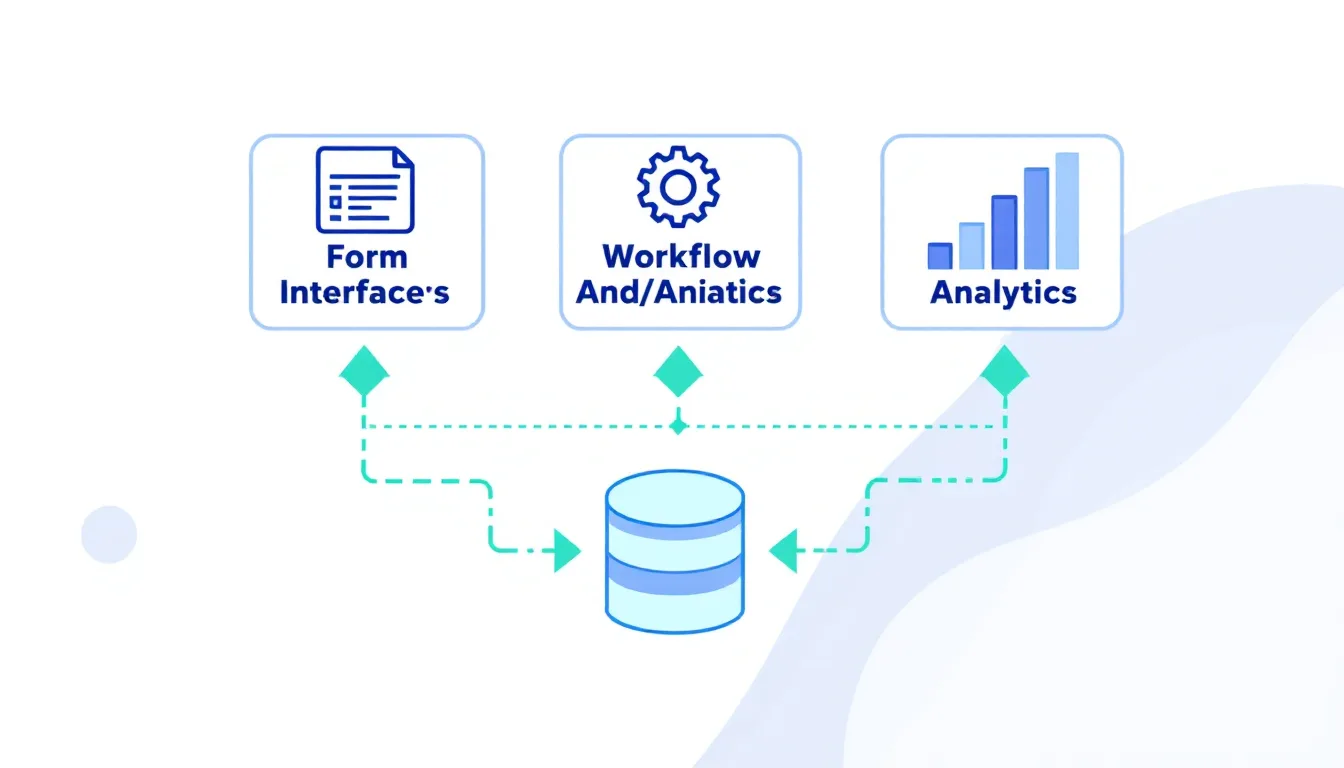
Power Platform isn’t one tool — it’s four that solve different problems and are meant to work together, not compete. Power Apps builds the interface people use to interact with data. Power Automate runs the workflow logic behind the scenes. Power BI turns the resulting data into dashboards. Dataverse holds it all together as the underlying data model.
The confusion usually comes from expecting one tool to do everything. It won’t. If your process needs a form where someone enters data, you’re in Power Apps territory. If it needs to route, approve, or move data between systems without a human clicking through screens, that’s Power Automate. If the end goal is a report someone checks weekly, that’s Power BI sitting on top of the other two.
The 2026 wrinkle is that Microsoft is pushing all of this toward orchestration rather than isolated tasks. According to Microsoft’s own 2026 release wave 1 plan for Power Automate, the trend is no longer about automating individual tasks — it’s about automating entire business processes across multiple platforms, with deeper RPA integration for legacy interfaces. That’s a meaningful shift from how most teams still use the platform.
Step 1: Pick the Right Process First
This is the step almost every “how to automate with Power Platform” article skips, and it’s the one that determines whether the project pays off. Before you open a single flow designer, score your candidate processes against a short list of criteria.
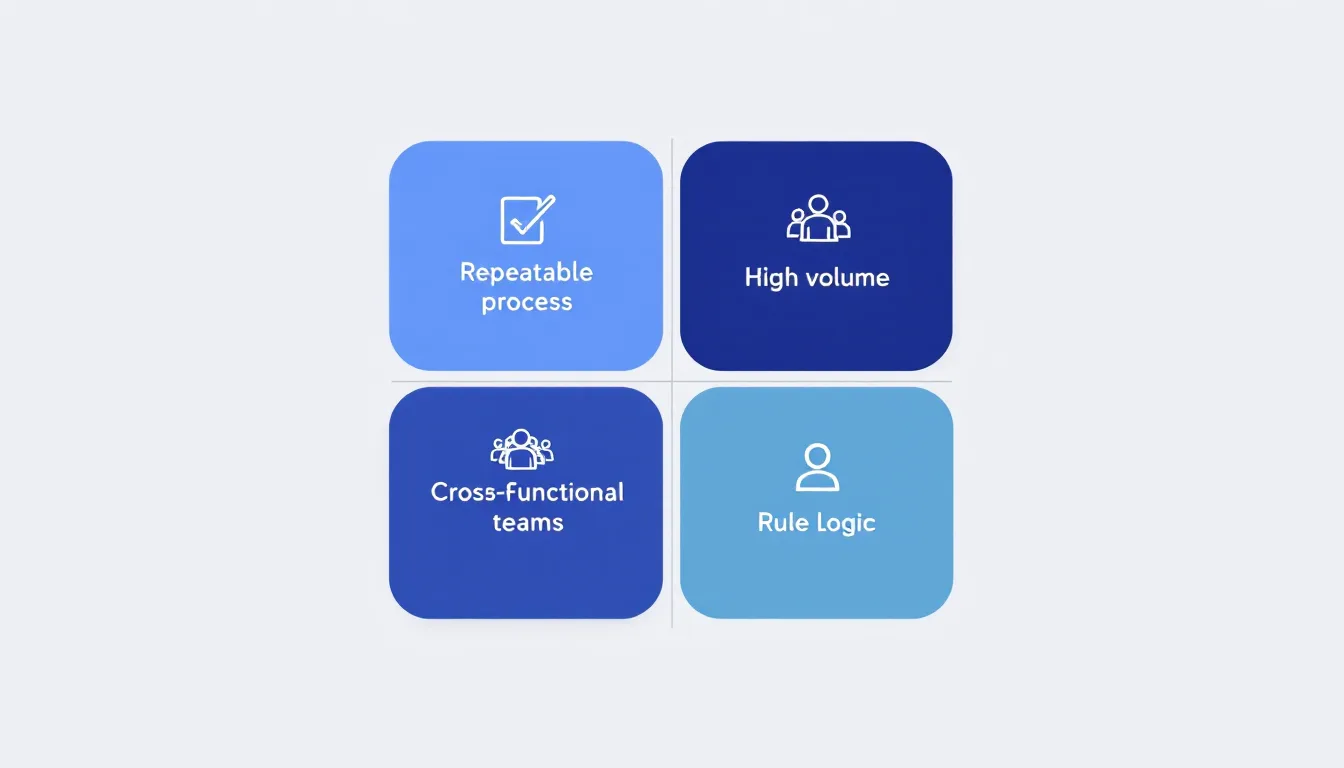
A process is worth automating on Power Platform if it’s:
- Repeatable and rules-based — the same steps happen the same way every time, with no judgment calls in the middle
- High-volume or high-frequency — it happens often enough that saved minutes add up to saved hours
- Cross-functional — it moves between people, teams, or systems, which is exactly where manual handoffs create delay
- Currently slowed by manual data movement — copy-pasting between spreadsheets, chasing signatures, or re-entering the same data twice
Notice what’s missing from that list: anything requiring judgment. Tasks that require critical thinking, ethical judgment, context-sensitive tradeoffs, employee relations sensitivity, or customer empathy should stay with employees — automate the paperwork around the decision, not the decision itself.
A simple scoring exercise works well here. List your candidate processes as rows, score each on frequency, error cost, and cross-functional friction from 1 to 5, and add the totals. The processes with the highest combined score go first — not the ones that are most visible or most annoying to the loudest stakeholder.
Invoice approval is the textbook example: a mid-size accounting team handling 180-plus vendor invoices monthly, where each invoice arrives by email or mail, gets manually entered into a spreadsheet, routed to a manager for approval, and finally processed for payment — a cycle that takes five to eight business days with data-entry errors and approval delays baked in. That’s a 5-out-of-5 candidate on nearly every axis. Compare that to something like “improve employee morale,” which sounds automatable but isn’t a process at all — it’s an outcome with no repeatable steps.
Step 2: Map It Before You Automate It
Once you’ve picked a process, resist the urge to open Power Automate immediately. Map the process as it actually runs today, not as it’s supposed to run. Power Automate includes a built-in tool for exactly this: process advisor records how a task currently happens and analyzes completion times and action sequences before you build anything. The first step to automating a solution is knowing the process — process advisor exists specifically to make that step concrete instead of assumed.
Microsoft’s own guidance frames this as a three-stage sequence, and it’s worth following literally rather than skipping to the build: plan by identifying the who, what, when, and why; design the new automated process on paper and consider different automation methods; then make the actual flows. Teams that skip the plan-and-design stages tend to automate the mess exactly as it exists — bottlenecks included.
Step 3: Build the Automation
With a mapped, scored process in hand, the build itself is usually the fastest part.
Power Automate for the workflow logic
This is where triggers, conditions, and approvals live. A flow watches for an event — a new email, a form submission, a file landing in SharePoint — and runs a defined sequence of actions in response. Power Automate connects over 1,000 services through pre-built connectors and custom APIs, addressing the fundamental problem that manual, repetitive tasks drain resources and slow progress. See common Power Automate use cases for concrete examples across departments.
Power Apps when a human needs an interface
Not every automation is invisible. If someone needs to submit a request, review a queue, or check a status, that’s a Power Apps screen sitting in front of the flow. Use Power Apps when users need to interact with data directly — submitting forms, updating records, tracking tasks, or managing workflows through a user interface. If you’re weighing Power Apps against a fully custom build, Power Apps vs. traditional app development breaks down the tradeoff.
AI Builder for documents and unstructured data
This is the piece that turns basic automation into something closer to intelligent automation. AI Builder’s invoice processing model reduces manual data entry, minimizes errors, and accelerates decision-making for document-intensive processes such as invoice processing, purchase order approvals, and rebate form processing. Pair it with Power Automate’s retry policies and role-based access, and you get a pipeline that can survive a malformed PDF without falling over. Common AI Builder use cases include extracting data from invoices, purchase orders, and registration forms, recognizing objects in images, forecasting outcomes from historical data, and running sentiment analysis on customer feedback.
Where Copilot Studio agents fit in
The 2026 release cycle is where this gets genuinely different from how the platform worked two years ago. Microsoft’s 2026 release wave 1 plan lists AI agent authoring, optimization, and self-healing capabilities for desktop flows, plus Copilot Studio-powered actions inside cloud flows and general availability of object-centric process mining. Practically, that means an agent can now retrieve data across systems, trigger multiple flows, and make routine decisions with a defined scope — rather than a human stitching five separate flows together manually. It’s not full autonomy, and it shouldn’t be treated as such, but it’s a real shift in what “automated” means on this platform.
Step 4: Govern It From Day One
Here’s the part that’s changed the most in the last year, and it’s the part most existing articles get wrong because they still describe last year’s setup.
Microsoft used to point everyone toward the Center of Excellence Starter Kit — a downloadable Dataverse solution with apps and dashboards for tracking Power Platform usage across a tenant. That kit is no longer where governance lives. Per Microsoft’s own CoE Starter Kit transition guidance, its core capabilities are now available directly in the Power Platform admin center through in-product experiences: Inventory to view and govern all apps, flows, and agents across the tenant; Usage to track adoption and identify top resources and owners; Monitor to track operational health; and Actions to identify risks and enforce best practices. The CoE Starter Kit itself is no longer receiving feature investment, and issues are no longer reviewed or addressed.

That matters for anyone starting fresh in 2026: don’t set up the old kit because a two-year-old blog post told you to. Use the admin center’s native governance tools from your first flow, not your fiftieth.
Why govern early rather than later? Because the failure mode is well documented and specific. Valorem Reply’s governance research finds that organizations without formal Power Platform governance experience application sprawl, security violations, and compliance breaches at rates three to four times higher than organizations with established Centers of Excellence. And the adoption curve makes this urgent rather than optional — widely-cited Gartner forecasts put 75% of new enterprise applications on low-code or no-code technologies by 2026. If three-quarters of new apps can be built by lunchtime, someone needs visibility into what got built.
In practice, governance-from-day-one means three things: a named owner for every flow (not “whoever built it”), a data loss prevention policy scoped before the first premium connector gets used, and a monthly Inventory review rather than an annual audit that finds forty orphaned flows at once.
What It Actually Costs
Power Platform pricing is one of the more confusing corners of Microsoft’s licensing, and a lot of third-party guides quote numbers with more confidence than the source data supports. Here’s what’s verifiable directly from Microsoft’s Power Automate pricing page.
Current published pricing lists a free 30-day trial, a Premium plan for individual users with cloud flows and attended desktop flows, a Process plan for automating core enterprise processes with unattended automation, and a Hosted Process plan that runs on a Microsoft-managed virtual machine on Azure. The Premium tier runs roughly $15 per user per month — the plan that unlocks premium connectors and AI Builder credits. Process and Hosted Process plans are priced per bot rather than per user, which typically lands in the $150–$215 per bot per month range, but exact figures depend on your specific agreement, so treat any bot-per-month number as directional and confirm current pricing before budgeting.
One licensing detail worth knowing before you scope a project: per Microsoft’s Power Automate licensing FAQ, a flow assigned a Process license can access premium connectors and gets a dedicated 250,000-action daily entitlement per license, and it always uses the Process license limits regardless of who runs it. That’s the difference between licensing a person and licensing an automation — and it changes the math significantly once a shared flow serves fifty people instead of five.
The other hidden cost most teams miss is AI Builder credit consumption. Document-heavy automation burns through included credits fast, and that’s typically the first add-on a growing automation program needs to budget for.
What Kind of ROI to Expect
Be skeptical of any single ROI number quoted without a source — the range across credible research is wide, and vendor-sponsored studies tend toward the high end. Compiled estimates from Softobiz put enterprise business process automation ROI between 30% and over 200%, with payback periods typically falling between three and eighteen months. AdAI’s 2026 automation ROI research adds that roughly 60% of business process automation initiatives report positive ROI within twelve months, and about 73% of IT leaders say these solutions cut process time by half — but only 26% of automation initiatives deliver the ROI companies initially expected, which is a useful gut check against over-promising to stakeholders before a pilot runs.
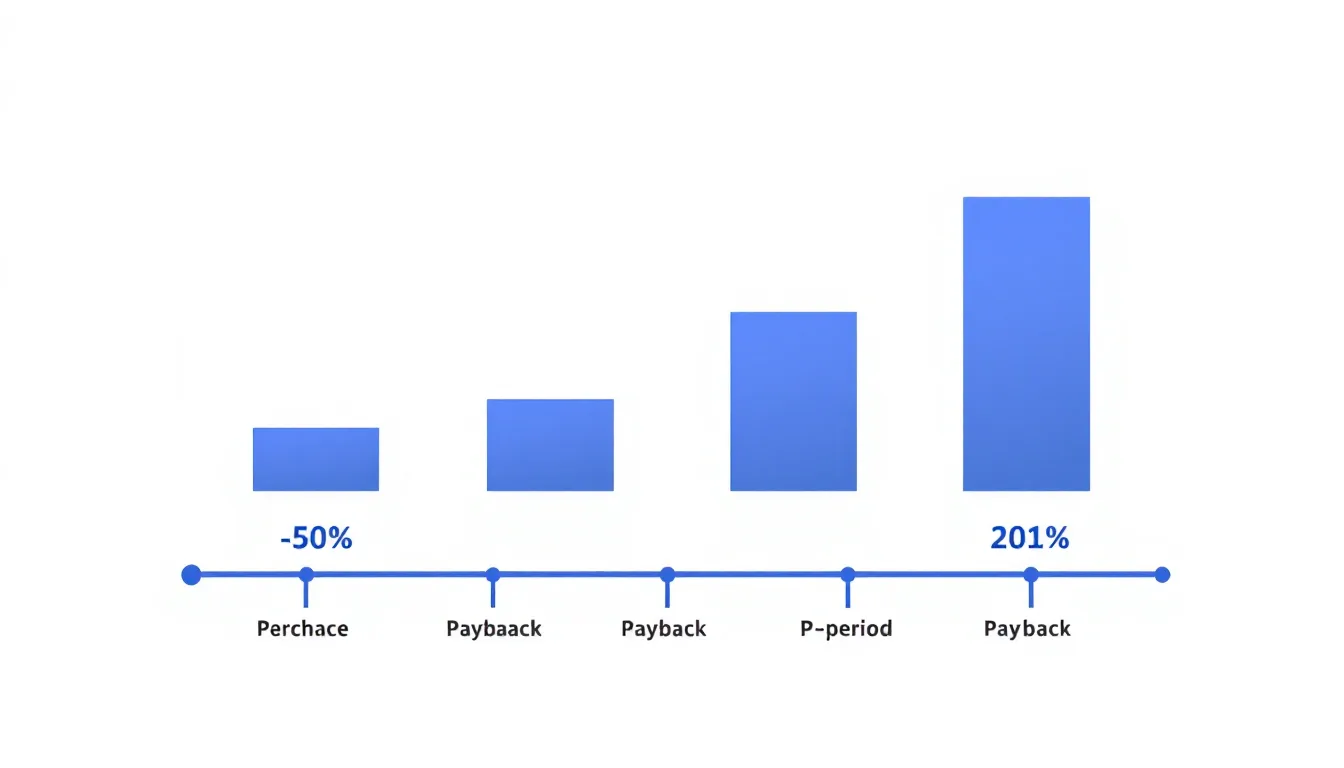
Document-heavy processes tend to see the fastest returns. Document automation typically achieves payback in three to six months, with first-year ROI in the 200% to 400% range — which lines up with why invoice and form processing is usually the first automation most organizations ship.
Common Mistakes That Stall Power Platform Automation Projects
Automating the process as-is, bottlenecks included. If a manual process has three redundant approval steps, automating it just makes the redundancy run faster. Fix the process, then automate.
Skipping the license audit. Teams frequently discover mid-build that a flow that touches Dataverse, SQL Server, Salesforce, or any third-party app requiring a premium connector will not work under the free Microsoft 365-included license, and the project stalls waiting on procurement.
Treating governance as a phase-two problem. By the time app sprawl becomes visible, it’s already expensive to unwind. Governance is cheapest at flow number one.
Choosing the tool before choosing the process. Building a slick Power App for a process nobody scored highly is a fast way to burn a sprint on low-value automation.
FAQ
What’s the difference between Power Apps and Power Automate for business process automation?
Power Apps builds the interface people use to interact with a process — forms, dashboards, request screens. Power Automate runs the logic behind that process — triggers, approvals, and data movement between systems. Most real automation projects use both together rather than choosing one.
Do I need AI Builder to automate document-based processes?
Not always, but it helps significantly with unstructured input. If your process involves invoices, purchase orders, or forms arriving as PDFs or images, AI Builder extracts the data so Power Automate can act on it without manual entry.
Is the Power Platform CoE Starter Kit still the right governance tool in 2026?
No. Microsoft has moved core governance capabilities — inventory, usage, monitoring, and risk actions — directly into the Power Platform admin center. The standalone Starter Kit is still usable but no longer receives updates.
How much does Power Automate cost per user?
The Premium plan runs roughly $15 per user per month based on current published pricing, though exact figures depend on your licensing agreement and change periodically. Confirm current pricing directly on Microsoft’s Power Automate pricing page before budgeting.
What’s the fastest business process to automate first with Power Platform?
Document-heavy, high-volume, rule-based processes like invoice approval or form processing tend to deliver the fastest measurable ROI, largely because AI Builder can handle the data extraction that used to require manual entry.
Ready to map your first process instead of guessing at it? Talk to ZapAI’s Power Platform team about a governed automation rollout.